The Visa Pay API enables secure digital wallet payment processing. It provides authentication and integration capabilities for client developers to implement payment functionality.
The API supports card enrollment, near real-time transaction authorization, and comprehensive token lifecycle management.
Here is a list of requirements you need to meet before you can start using the Visa Pay API. You need to complete production integration before this information becomes useful.
Visa Pay uses Pismo infrastructure for its APIs. This means clients must create an Organization within Pismo. An organization is the main object on the Pismo platform. It acts as a container that holds all programs. For more information, refer to Core objects.
The Organization ID will be issued by a Visa Pay representative. Reach out to your client account representative at Visa to request an Organization ID for Visa Pay and provide this information:
| Field | Description |
|---|---|
| Environment* | The identifier for the environment where this Org will be created. Forsandbox, this will be 'EXT' |
| Org Name* | A name to identify your Organization in the platform |
| Address | Address |
| Number | Address number |
| Complementary Address | Additional address line |
| Landmark | Reference |
| Zip Code | Post code, zip code or other postal identifier for the office address |
| City | City of address |
| State | State of address |
| Country | ISO 3166 country codes to represent the country (the 3-character alphabetic value) |
| Legal Representative's Name | Name of Legal Representative |
| Email * | Email of the admin user for the organization |
| Time zone (TZ Database name) | IANA database for time zones. For India, for example, you would use 'Asia/Kolkata' as the default value |
| Currency Code | ISO 4217 currency codes to represent currency (the 3-character numeric value). For example, Indian Rupees is '356' in the ISO 4217 spec |
| Document Number | Any unique identifier for your company. This is usually something like a company registration number in the country of operation |
Fields with * indicate the required fields to submit a request for org creation.
During the setup process, the Visa Pay client's administrator will receive an automated email from Pismo. The administrator will complete the setup and may invite additional team members to the tenant as necessary.
You can only create a program after Visa has issued the Organization and the administrator has successfully signed in to the Control Center. You must create a program for Visa Pay as this will be a primary field used across the API calls. To create a program for Visa Pay, follow the instructions:
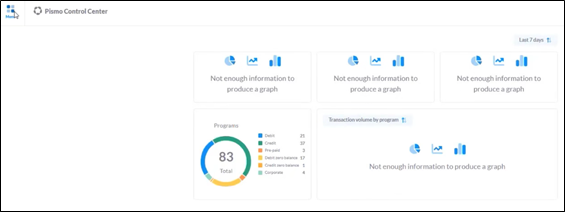
1. After you log in to the Control Center, click the "Menu" button in the top left corner.
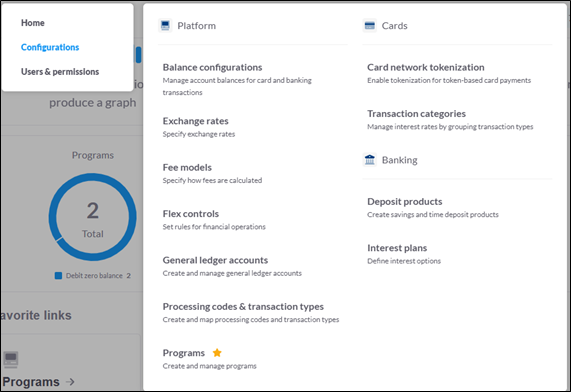
2. On the Menu, click Configurations. Then, click Programs.
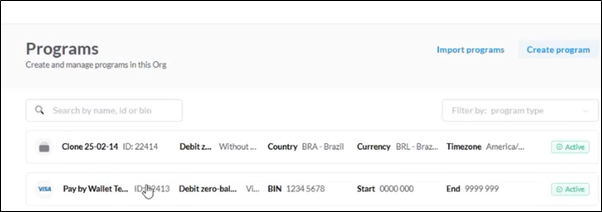
3. On the Programs screen, click Create Program
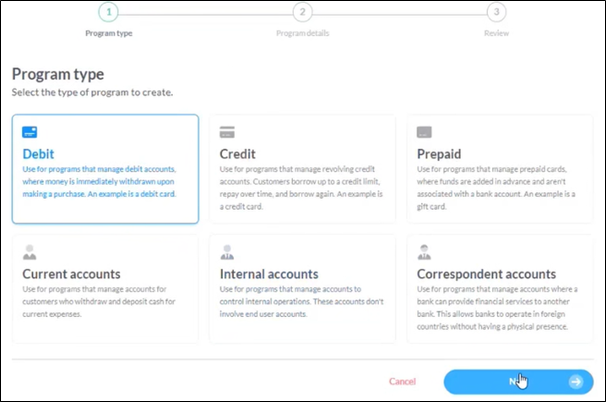
4. On the Program Type screen, click Debit.
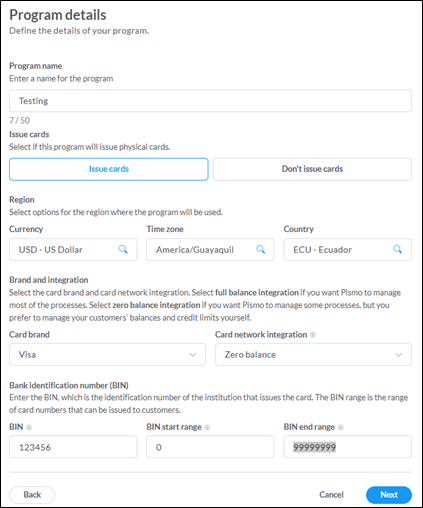
5. Register the program with details like Currency, Time zone, Country, and BIN (start + end range). Then, click Next.
Visa Pay card configuration follows specific requirements for brand, network, and BIN settings.
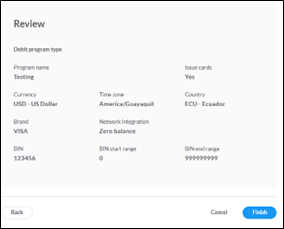
6. Review the details and click Finish to complete the program process.
Production BIN ranges must align to the token ranges activated in Visa for that BIN. For more information, refer to Manage Programs.
 Start a Project
 API Overview
 API Reference