Certificate Signing Requests (CSRs)
Learn about Certificate Signing Requests (CSRs), including when you need them and how to generate them for your APIs.

Overview
A Certificate Signing Request (CSR) is a request you generate to obtain a certificate used for certificate‑based authentication (Two‑Way SSL or Message-Level Encryption (MLE)). You create CSRs during onboarding before making API calls in Certification or Production, and later when a certificate is about to expire and you need a new one to replace it.
In order to create a CSR, you first generate a public-private key pair. The public key is included in the CSR, but you must keep the private key stored securely on your system. The private key is used for Two-Way SSL (mutual TLS) authentication and for decrypting the encrypted MLE response payloads.
This guide explains how to:
- Determine when you need to generate a CSR
- Generate and submit CSRs for Two‑Way SSL and MLE
- Understand how CSRs are generated during onboarding and across environments
- Follow best practices for CSR and certificate management
Best practices
Follow these best practices to protect private keys and ensure reliable certificate management across environments:
- Store private keys in secure vaults and never hard‑code them.
- Restrict project and certificate access to authorized users only.
- Rotate certificates before expiration.
Important: Visa Developer does not have access to your private keys. Loss of a private key prevents authentication or decryption. If you lose your private key, you must generate a new private key and CSR and obtain a new certificate.
When do I need a CSR?
Use the table below to determine when you must generate a CSR for your project.
Note: Creating a CSR is part of the onboarding process and occurs before making live API calls.
| Scenario | CSR required? | Reason |
|---|---|---|
| You select Two-Way SSL for authentication (Sandbox) | Optional | Two-Way SSL requires a client certificate, which is issued from a CSR. In Sandbox only, to get started quickly, Visa provides the option to generate a key pair and CSR for you, but you must download the private key (Visa does not store it). |
| You select Two-Way SSL for authentication (Certification/Production) | Yes | Two-Way SSL requires a client certificate, which is issued from a CSR. |
| You select X-Pay Token for authentication | No | X-Pay Token uses an API Key and shared secret, not certificates and CSRs. |
| Any API in your project requires MLE | Yes | MLE requires its own CSR, separate from Two-Way SSL and regardless of authentication method. |
How CSRs are used across environments
CSRs follow consistent rules across all Visa Developer environments.
- CSRs are environment-specific. Certificates issued for one environment cannot be reused in another.
- This means that Certification and Production require separate keys, CSRs, and certificates. If an API requires Certification before Production, you complete the process twice.
- Two-Way SSL and MLE also require separate keys, CSRs, and certificates. This page provides shared instructions for generating keys and CSRs across environments and use cases. Be sure to use unique, descriptive filenames so you do not overwrite existing files.
- The CSR Wizard is available in Certification and Production. For simplicity, Sandbox supports auto‑generation or uploading your own CSR but does not provide the guided CSR Wizard experience.
End-to-end CSR/certificate process
At a high level, creating a CSR and obtaining a certificate follows this process:
- You generate a CSR using the option appropriate for your environment.
- You upload the CSR file.
- Visa approves the CSR and issues you a certificate, which you download and install.
- You use the certificate for authentication or encryption when making API calls.
This guide walks you through the first step, providing all the options available for generating a CSR in each environment. Remaining steps are covered in Two‑Way SSL and Message-Level Encryption (MLE) guides.
Generate a CSR in Sandbox
In Sandbox, choose one of the following options and select Submit. Follow additional instructions detailed below depending on the option you select.
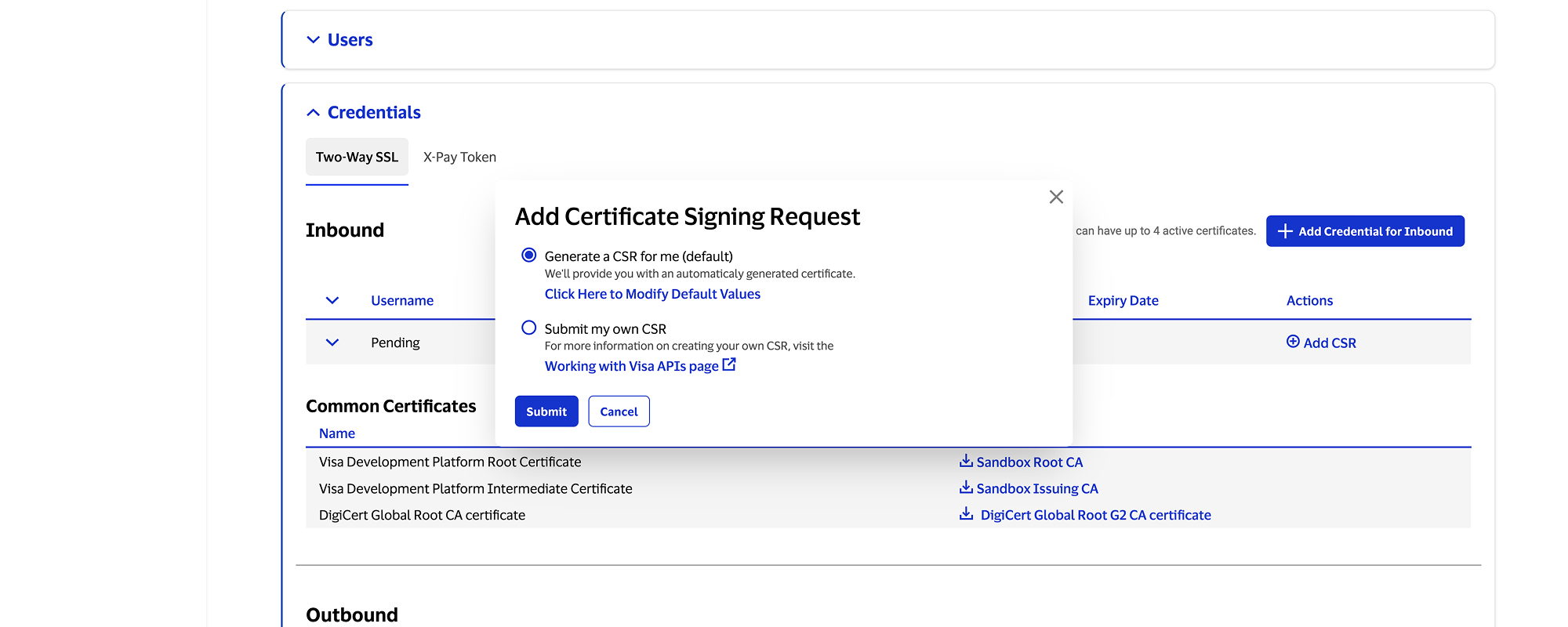
Generate a CSR for me (default)
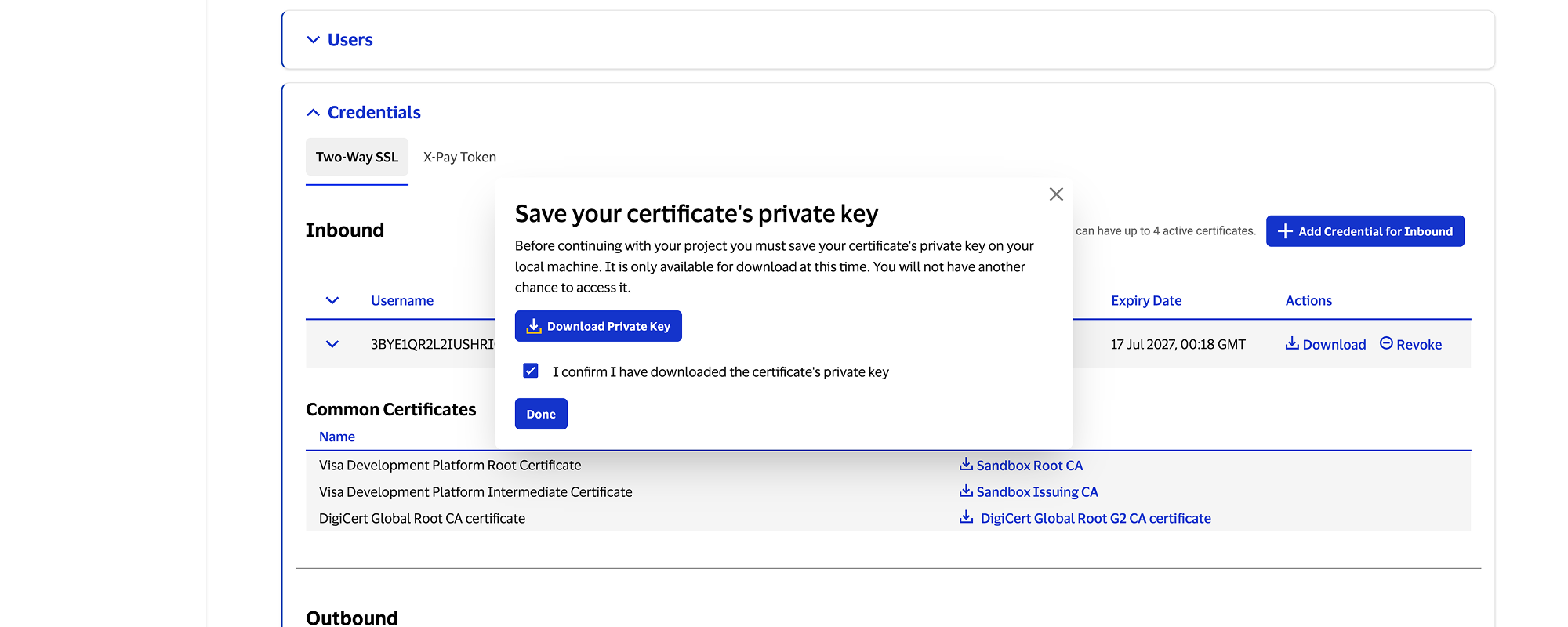
In this option, Visa Developer generates a private key and CSR for you. You must download the private key at this time (Visa does not store it). This option is only available in Sandbox to help you get started quickly. For Certification and Production, you will generate the private key and CSR yourself.
Select Download private key to download the private key to your local machine. Confirm it is saved to your computer and select Done. Proceed to Two‑Way SSL and Message-Level Encryption (MLE) guides to download your certificate and continue the process.
Submit my own CSR
Choose this option if you will generate a private key and CSR yourself. Follow the instructions below at Create a CSR using your own generated commands (any environment).
Generate a CSR in Certification or Production
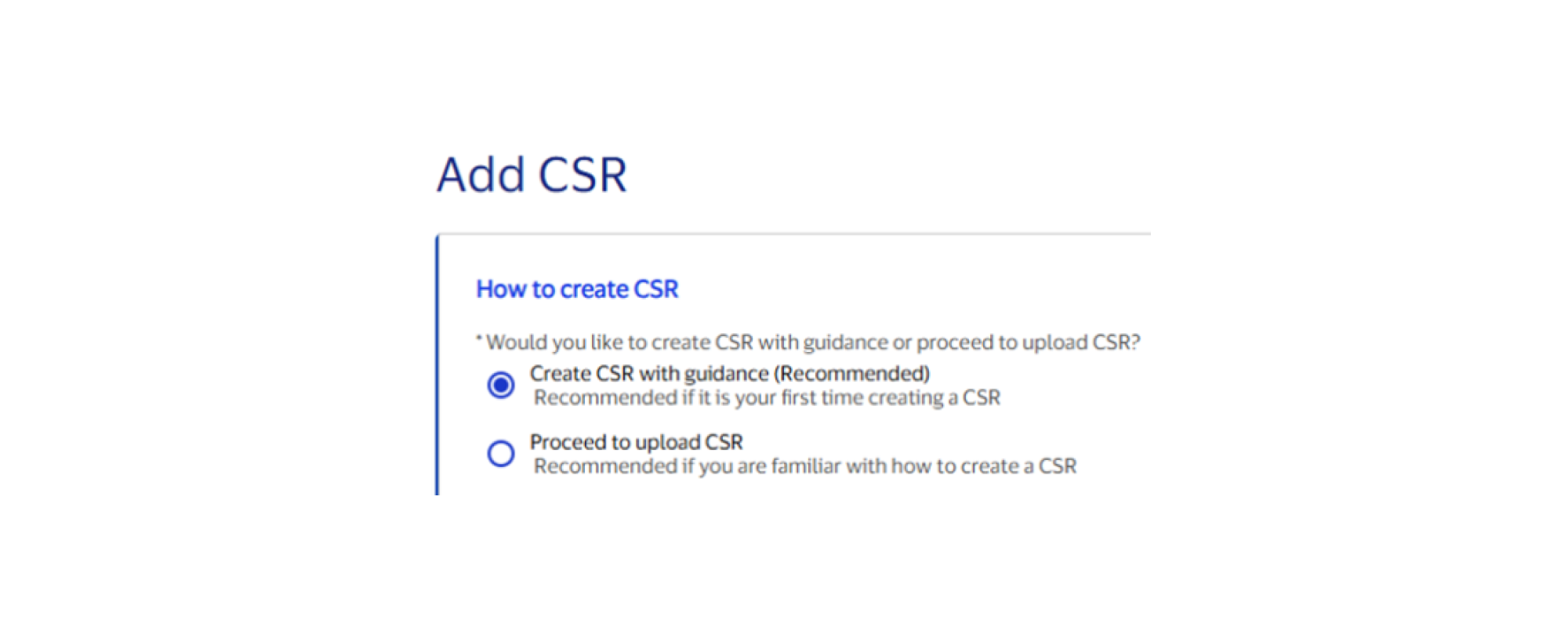
In Certification or Production, choose one of the following options and select Submit. Follow the additional instructions below depending on the option you select.
Create a CSR with guidance (recommended)
In this option, you will use the CSR Wizard to generate OpenSSL or Java keytool commands, run them locally, and upload the resulting CSR file. This is the recommended option because the CSR Wizard pre-populates most of the fields based on your company information. Follow instructions below at Create CSR with guidance (Certification or Production).
Proceed to upload CSR
Choose this option if you prefer to generate CSR commands yourself. Follow the instructions below at Create a CSR using your own generated commands (any environment).
Create a CSR with guidance (Certification or Production)
Use this flow in Certification or Production when you select Create a CSR with guidance.
1. Open the CSR Wizard by selecting Add CSR > Create a CSR with guidance (recommended).
2. Select one of the supported tools, either OpenSSL or Java keytool.
3. Review CSR fields to ensure they meet Visa Developer requirements. The CSR Wizard pre-populates most of the fields based on your company information. Most fields are editable, except the UID field, which already shows the required value for the type of CSR.
| Field | Required value |
|---|---|
| Common Name (CN) | Fully qualified domain name (hostname.domainname.com). Do not use wildcards or www. |
| Organization name (O) | Legal organization name. (Example: Bank of USA) |
| Organizational unit (OU) | Division within your organization. (Example: Debit Card Processing) |
| Locality/City (L) | City name spelled out completely, no abbreviations. (Example: San Francisco) |
| State (ST) | State or province spelled out completely, no abbreviations. (Example: California) |
| Country (C) | Two‑letter ISO 3166‑1 country code. (Example: US) |
| User ID (UID) | For Two-Way SSL (mTLS), CSR UID plus environment-specific suffix:
For MLE, the UID is the MLE Key ID and does not use environment-specific suffixes Note: The CSR UID value to use is displayed on the Upload Certificate Signing Request (CSR) screen. |
CSR field notes:
For all fields, only the following ASCII characters are allowed:
- Space character
- Upper case A to Z
- Lower case a to z
- Digits 0 to 9
- Dash (-)
- Period is allowed in Common Name (CN)
Do not include any other fields or extensions attribute in the CSR.
4. Select Generate Commands and run tool‑specific commands to create the private key and CSR in your local environment. Depending on the tool you selected, the commands produce the following artifacts:
- OpenSSL
- A private key
- A CSR file containing the public key
- Java keytool
- a Java keystore (JKS) file containing a private key
- A CSR file containing the public key
Create a CSR using your own commands (any environment)
Use this flow when you choose to create the CSR commands yourself. Use OpenSSL or Java keytool to generate a private key and CSR.
OpenSSL
1. Generate a 2048-bit RSA key pair.
openssl genrsa -out example-key.pem 2048- In the command above, example-key.pem is a sample filename for the private key. To keep your files organized, use a separate, descriptive filename for each key for Two-Way SSL (mTLS) and MLE, and for each environment.
- For information about supplying a password to protect the key file, review OpenSSL documentation.
- Be sure to keep this key file and password secure. You will need these to make runtime API calls.
2. Generate a new CSR using the following OpenSSL environment-specific commands.
Note: Be sure to replace the < > characters and the enclosed values with your own values. Refer to the CSR field requirements table above.
Sandbox Two-Way SSL command:
openssl req -new -sha256 -key example-key.pem -out example.csr -subj "/CN=<common name>/OU=<organization unit>/O=<organization name>/L=<city/locality name>/ST=<state name>/C=<country name>"Note: The UID field is not used in the Two-Way SSL (mTLS) CSR for Sandbox. It is only used in Certification and Production.
Sandbox MLE command:
openssl req -new -sha256 -key example-key.pem -out example.csr -subj "/CN=<common name>/OU=<organization unit>/O=<organization name>/L=<city/locality name>/ST=<state name>/C=<country name>/UID=<UID value>"Certification and Production command:
openssl req -new -sha256 -key example-key.pem -out example.csr -subj "/CN=<common name>/OU=<organization unit>/O=<organization name>/L=<city/locality name>/ST=<state name>/C=<country name>/UID=<UID value>"Java keytool
1. Create a Java keystore file using the following keytool environment-specific commands.
Note: Be sure to replace the < > characters and the enclosed values with your own values. Refer to the CSR field requirements table above.
Sandbox Two-Way SSL command:
keytool -genkeypair -alias client -keyalg RSA -keysize 2048 -keystore clientkeystore.jks -storepass <password> -keypass <password> -dname "CN=<common name>, OU=<organizational unit>, O=<organization name>, L=<city/locality name>, ST=<state name>, C=<country name>"Note that the UID field is not used in the Two-Way SSL (mTLS) CSR for Sandbox. It is only used in Certification and Production.
Certification and Production command:
keytool -genkeypair -alias client -keyalg RSA -keysize 2048 -keystore clientkeystore.jks -storepass <password> -keypass <password> -dname "CN=<common name>, OU=<organizational unit>, O=<organization name>, L=<city/locality name>, ST=<state name>, C=<country name>, UID=<UID value>"2. Generate a CSR
keytool -certreq -alias client -keystore clientkeystore.jks -storepass <password> -keypass <password> -file certreq1.csrContinue certificate setup
Now that you have your CSR and keys, complete the remaining steps by returning to Two‑Way SSL guide (Step 3) and/or Message-Level Encryption (MLE), guide (Step 2). These guides explain how to download and install the issued certificates and use them for authentication or encryption when making API calls.
Need help?
Find answers in our FAQs or get support from a Visa Developer expert.