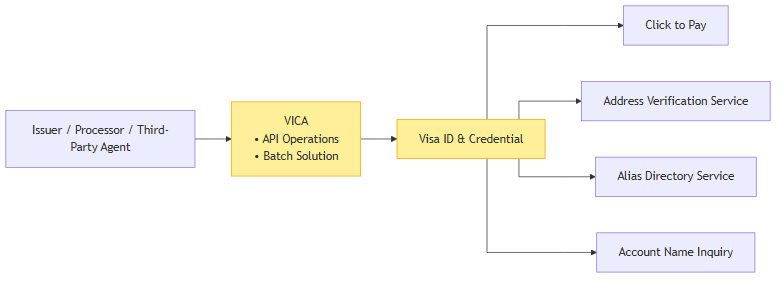
Click to Pay with VICA

Click to Pay is Visa's secure online checkout solution that lets cardholders pay at participating merchants without manually entering card details or relying on the PAN. It is based on the EMV Secure Remote Commerce (SRC) standard and uses Visa network tokens with a unique cryptogram generated for every transaction.

Visa's vision is for Click to Pay to replace PAN key entry for e-commerce in much the same way Chip and Contactless replaced magnetic stripe at the point of sale. Click to Pay eliminates the need for consumers to enter card details manually at checkout and removes the reliance on PANs for e-commerce, using Visa network tokens with a secure cryptogram generated for every transaction and reducing the opportunity for fraud.

As an issuer, you can enable Click to Pay as a card-level feature of the bank card, just like Contactless. VICA gives you (or your VisaNet Processor, Visa Scheme Processor, or Third-Party Agent) a single API set to enroll and manage consumer and payment-instrument data for Click to Pay - the same endpoints you use for every other VICA product.

How it works

  • Targeting Click to Pay. Include CLICK_TO_PAY in the products array. Integrations that predate the products field may continue to use the legacy intent pattern for backward-compatible CTP flows — see Core Concepts › Request Patterns.
  • Enrollment. Submit a consumer plus one or more CARD payment instruments (each with billingAddress). CTP supports CARD instruments only.
  • Asynchronous processing. Writes return HTTP 202; the outcome arrives via Request Status or a Status Notification. See Core Concepts › Asynchronous Processing Model.
  • Get Data is synchronous and returns the consumer's current enrollment and all associated payment instruments.

Issuer Offered Click to Pay (IoC)

When a consumer initiates a Click to Pay self-enrollment and you are enabled for Issuer Offered Click to Pay, Visa sends a Click to Pay Enrollment Attempt Notification to your registered endpoint, allowing you to confirm eligibility before the enrollment completes. The endpoint is configured in Visa Developer Platform (VDP) and mapped to the relevant account ranges in Visa Digital Configuration Service (VDCS) by Visa Client Configuration Management (CCM).

What you can do

A typical Click to Pay integration follows the lifecycle below. Each step links to its recipe in Implementation Guides - select the Click to Pay tab on each.

Figure: the typical Click to Pay integration lifecycle — enroll a consumer and card, then add, update, or delete cards as needed.

  1. Enroll a consumer and their first card: How to Enroll Data. Returns 202; confirm via Request Status. locale is required for CTP.
  2. Retrieve the enrolled data: Get Data.
  3. Add more cards to the consumer: Enroll Payment Instruments (up to 10 per consumer).
  4. Update consumer profile fields (email, mobile): Manage Consumer Information.
  5. Update a card (e.g., billing address): Manage Payment Instruments. Note: expirationDate cannot be changed.
  6. Remove a single card: Delete Payment Instruments.
  7. Remove the consumer and all their cards: Delete Consumer Information.
  8. Extend to another product - add this consumer to ADS or another product without re-entering details: Enroll a Known Consumer into an Additional Product.
  9. Be notified of a self-enrollment - learn when a cardholder enrolls themselves: Issuer offered Click to Pay (IoC).

Supported operations

Operation Supported Notes
Enroll Issuer Data YES Requires consumerInformation and ≥1 CARD with billingAddress
Enroll Payment Instruments (type=CARD) YES billingAddress required; consumerInformation required to specify extConsumerId and ownerBID
Enroll Payment Instruments (type=BANK_ACCOUNT or type=NON-VISA-CARD) NO Not supported
Manage Consumer Information Data YES Profile fields can be updated after enrolment
Manage Payment Instruments Data YES Card details can be updated
Delete Consumer Information Data YES Also removes all associated payment instruments from CTP
Delete Payment Instruments Data YES Removes a single card; consumer and other cards unaffected
Get Issuer Data YES Synchronous (HTTP 200)

Product-specific fields and constraints

  • locale required. Required for Click to Pay enrollment (e.g., en_US). Omitting it fails the CTP request with VIDC-1000.
  • countryCode required. Required for Click to Pay enrollment (e.g., USA). Omitting it, or sending an unsupported value, fails the CTP request with VIDC-1000.
  • Mobile phone numbers only. Landlines are rejected, since Click to Pay uses the number to send one-time passcodes. Submit digits only, formatted per ITU-T E.164, with no leading "+".
  • billingAddress.country required. Required for Click to Pay enrollment (e.g., USA). Omitting it fails the CTP request with VIDC-1000.
  • postalCode format validated per country. US requires exactly 5 digits; Canada requires 6 alphanumeric characters (a space is allowed between the 3rd and 4th character); Australia requires exactly 4 digits; all other countries allow up to 9 alphanumeric characters.
  • Maximum 10 cards. Limited to 10 cards per externalConsumerID. Exceeding this returns VIDC-2010.
  • Visa cards only. Non-Visa PANs are rejected (VIDC-2006).
  • No comma in nameOnCard. Rejected for Click to Pay, even though a comma is otherwise allowed by VICA's general character rules.
  • expirationDate immutable. Cannot be updated via Manage Payment Instrument (VIDC-2008).
  • Tokenization eligibility. A PAN that is not eligible for tokenization is declined (VIDC-7000).

For the complete field list and constraints, see API Reference.

For all reason codes, see Errors and Troubleshooting.

Blocked Characters by Field

Net effect an issuer experiences per request field. VICA is the front gate, so a character is blocked if either VICA or CTP rejects it; which layer catches it does not matter. Fields are named as they appear in the VICA request payload (the VICA→CTP interaction point). "Allowed" means everything else is blocked.

VICA field (Issuer submits) Allowed (everything else blocked) Common blocked characters
consumerInformation.firstName / middleName / lastName / fullName / preferredname letters (incl. accents / non-Latin), space, - ' . ~ digits 0-9, & @ # % $ ^ * ! = ; : " < > ( ) [ ] { } / _ + \| ? ,
paymentInstruments[].nameOnCard letters, digits, space, - ' . ~ , & @ # % $ ^ * ! = ; : " < > ( ) [ ] { } / _ + \| ?
paymentInstruments[].billingAddress.addressLine1 / addressLine2 / addressLine3 letters, digits, space, - _ , ' . ( ) / & @ # % $ ^ * ! = ; : " < > [ ] { } + \| ? ~
paymentInstruments[].billingAddress.city letters, digits, space, - ' . , ( ) / & @ # % $ ^ * ! = ; : " < > [ ] { } _ + \| ? ~
paymentInstruments[].billingAddress.state letters and digits only space and all punctuation
paymentInstruments[].billingAddress.postalCode ASCII letters / digits, -, space accented / non-Latin letters, & @ # % . / ( ) _ , :
consumerInformation.phones[] digits only + - ( ) space, letters
consumerInformation.emails[] (local part, before @) letters, digits, + _ . - & ' ! # $ % * / = ? ^ ( ) : ; { } \| ~
consumerInformation.dateOfBirth digits and / (format MM/DD/YYYY) everything else
consumerInformation.externalConsumerID, consumerInformation.nationalIdentifiers[].value anything except the blocked set → [ ] { } : & $ ^ ! = ; * # < > "`
consumerInformation.externalConsumerIDOwnerBID digits only non-digits

Characters Most Likely to Appear in Real Issuer Data and Get Blocked

  • & — blocked in every name and address field (e.g. "Ben & Jerry", "A&B Plaza").
  • Digits in a personal name — blocked in firstName / middleName / lastName / fullName (allowed in nameOnCard and address).
  • # — blocked in names, city, and postal code (e.g. "Apt #4").
  • Formatted phone punctuation — +, -, (, ), and spaces are all blocked; phone must be bare digits.

Notes

  • Letters including accented and non-Latin characters (é, ñ, ü, 李, Иван) are allowed in all name and address fields; only postalCode is ASCII-only.
  • The everyday name punctuation - ' . and space are accepted across name and address fields.

Behavior When a Consumer Is Disabled

Setting a consumer's status to DISABLED changes how their data is surfaced and managed:

  • At checkout / destination sites, cards issued to that consumer by your BID are not returned or shown to the consumer.
  • You may still enroll additional cards, update payment-instrument data, delete the consumer, and delete their cards.
  • A Manage Consumer update is applied only if the request status is ACTIVE (or status is omitted). Because the operation is an overwrite, the record is replaced with the data in the request. If the request sets status to DISABLED, the update is rejected and Click to Pay returns an error.
  • Disabling a consumer does not change the status of their individual payment instruments.

VCEH Integrations

Issuers with an existing Visa Card Enrollment Hub (VCEH) integration for Click to Pay enrollment can continue to use VCEH for card enrollment. Contact your Visa Representative for guidance on using VCEH for card enrollment alongside VICA for consumer data management.

Related